
Your admin
desk, in your
pocket.
Manage users, limits, expiry and passwords from the XGen Admin app for Android, with real situations and good-to-know details.

 XgenPlus Domain Admin App Guide · Contents
What is inside
The XGen Admin app puts the everyday admin jobs on your phone. Every page is a recipe: Useful when, How to, Good to know and a Pro tip.
In this guide
01The app at a glanceWhat it is, who it is for, how to get it302Sign in and lock itCredentials, one-time code and your PIN403Find and manage usersSearch, then pick a setting604Every setting, one tileServices, limits, expiry, space, aliases and more705Add a user and sign in to the webNew mailbox from your phone, web login code906Real situationsSix moments when the app saves the day1107Good to knowApp or console, safety, cheat sheet13Always up to date. The latest and most up-to-date information is always available at docs.xgenplus.com.
 XgenPlus Domain Admin App Guide · 1 The app at a glance
The app at a glance
Your admin console is open at your desk. The app is for every other place you happen to be.
XGen Admin for Android
| App name | XGen Admin |
| For | Domain administrators (and server administrators) |
| Platform | Android phones and tablets |
| Get it | Google Play · xgenplus.com/download |
| Tagline | Access admin features any time, anywhere |
- Find any user in your domain by email
- Switch services on or off for that user
- Set limits, expiry date and space
- Change a password and add aliases
- Enable POP and IMAP, set signatures
- Add a new user
- Create a web login code
- Open XGen Admin on your phone and sign in.
- Type the user's email and tap Search.
- Pick the setting you need on the Select Setting screen.
- Change it and tap Save.
- The app is built around one user at a time. For domain-wide work (Edit Domain, Policy, Bulk Add, reports, backup), use the admin console in your browser.
- What you see depends on your role. A menu or tile you cannot use is not available to your role.
XgenPlus Domain Admin App Guide · 2 Sign in and lock itSign in and lock it
Three things stand between a stranger and your admin powers: your credentials, a one-time code and a PIN.
Sign in for the first time
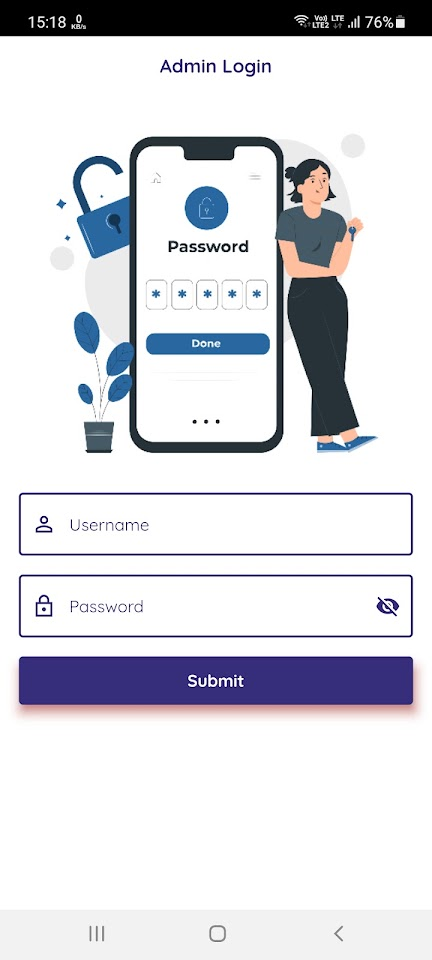
Domain Admin Android app- Open XGen Admin and enter your Username and Password, then tap Submit.
- Enter the one-time code (OTP) sent to your registered mobile number.
- The app asks you to set a PIN and then to confirm it. Remember it: you will use it each time you open the app.
- You land on the Manage Users screen.
- Your admin credentials are the ones of your XgenPlus admin account.
- Never share the one-time code or your PIN with anyone, including colleagues and support staff.
- These steps follow the app's current login screen and the earlier Administrator guide. If your app asks for something different, trust the screen and check docs.xgenplus.com.
 XgenPlus Domain Admin App Guide · 2 Sign in and lock it
Keep it safe on a shared or lost phone
Domain Admin Android app- On a phone you share, use the sign-out icon in the bottom bar when you finish.
- If the phone is lost, sign in to the admin console from another device and change your own password straight away (see the Domain Admin Guide).
- Use the phone's own screen lock as well as the app PIN.
- The bottom bar has a PIN button, a sign-out button and a button for web login.
- A strong admin password matters more than anything else: use the password policy in the console for your whole domain.
Your five-point safety check
- PIN set in the app
- Phone screen lock on
- Strong admin password
- Sign out on shared phones
- Never share the one-time or web login code
- Use the web login code, not your password, on PCs you do not own
XgenPlus Domain Admin App Guide · 3 Find and manage usersFind and manage users
Every job in the app starts the same way: find the user.
Search for a user
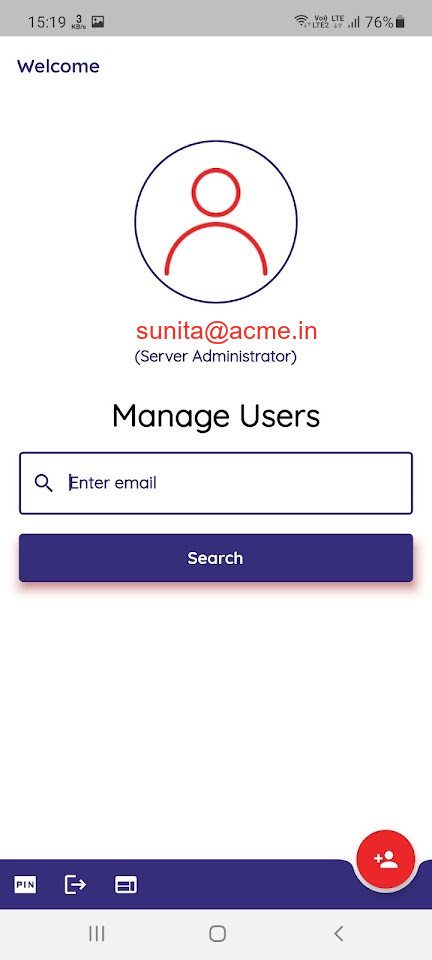
Domain Admin Android app- On Manage Users, tap the search box and type the user's email address.
- Tap Search.
- Tap the user to open the Select Setting screen with ten tiles.
- To add someone new, tap the red + button (chapter 5).
- The top of the screen shows who you are signed in as and your role.
- Search is by the user's email address. Type the full address of a mailbox in your domain.
 XgenPlus Domain Admin App Guide · 4 Every setting, one tile
Every setting, one tile
Ten tiles on the Select Setting screen cover what most users ever need.
| Tile | What you can do | A real use |
|---|---|---|
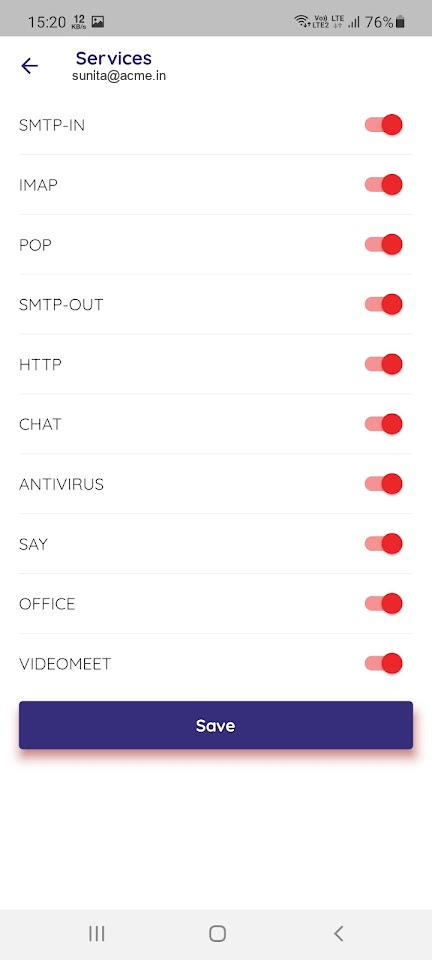
| Services | Switch SMTP-IN, IMAP, POP, SMTP-OUT, HTTP, CHAT, ANTIVIRUS, SAY, OFFICE and VIDEOMEET on or off | Stop POP for one person |
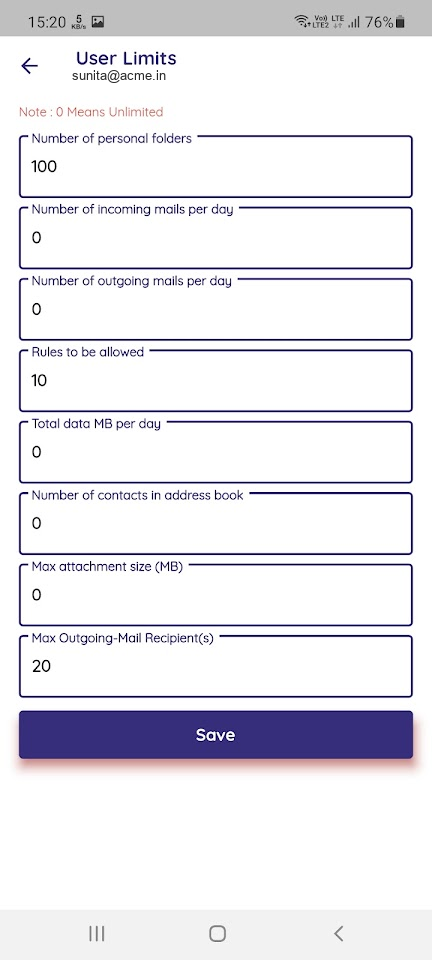
| User Limits | Personal folders, incoming and outgoing mails per day, rules, data per day, contacts, attachment size, recipients | Allow a bigger attachment |
| Expiration Date | Set the date the account expires | Contractor ends Friday |
| Change Password | Set a new password for the user | Locked-out user on a Sunday |
| Allowed Space | Give the user a specific mailbox space | Mailbox is full |
| Alias | Create one or more aliases for the user | New role address |
| IMAP/POP | Enable POP and IMAP for the user's profile | Phone mail app needs IMAP |
| Security | Set security options for the user's profile | Tighten one risky account |
| User Signature | Set Signature 1 and 2 and choose the active one | New company signature |
| Manage User | Edit the user's details | Name or mobile changed |
Expiration, password, space and aliases
Domain Admin Android app- Expiration Date: choose the date and save.
- Change Password: enter the new password and save.
- Allowed Space: set the space and save.
- Alias: create an alias. A user can have more than one.
- Aliases are free: every user gets 30 alias addresses at no charge, and users can sign in with an alias.
- Total storage comes from your online purchase. You move space between users inside your total.
- Tell the user the new password personally, and ask them to change it at first sign-in.
XgenPlus Domain Admin App Guide · 4 Every setting, one tileServices and User Limits
Domain Admin Android app- Tap Services, switch the service on or off, then tap Save.
- Tap User Limits, change the number in the box, then tap Save.
- Note: 0 Means Unlimited is shown on the limits screen.
- Limits: personal folders, mails per day (in and out), rules, data per day, contacts, attachment size and recipients.
- IMAP/POP: enable POP and IMAP for the user's profile.
- Security: set the security options for the user's profile.
- User Signature: write Signature 1 and Signature 2 and choose which one is active.
- Manage User: edit the user's details.
- For the phone setup values (servers and ports), see the Desktop & Mobile Setup Guide.
- For anything the app does not show, open the admin console in a browser.
XgenPlus Domain Admin App Guide · 5 Add a user and sign in to the webAdd a user and sign in to the web
Two jobs that used to need a laptop.
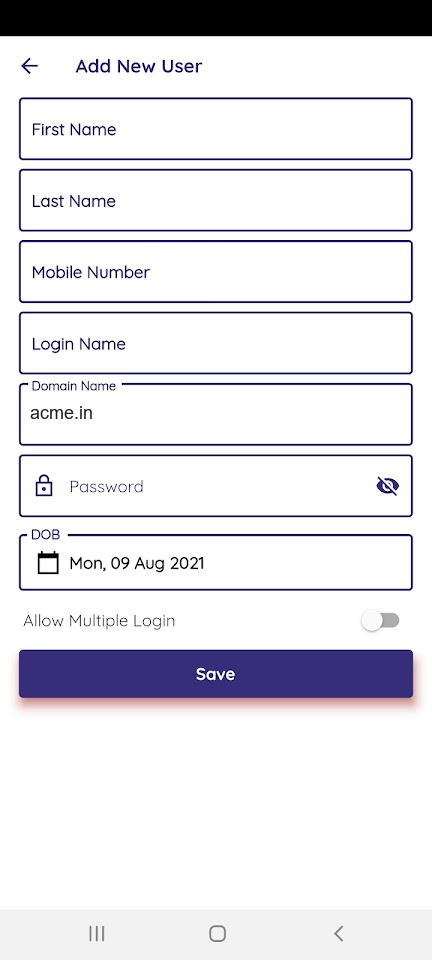
- Tap the red + button.
- Fill First Name, Last Name, Mobile Number and Login Name. The Domain Name is your domain.
- Enter a Password and the DOB. Switch on Allow Multiple Login only if the user needs it.
- Tap Save.
- Use the console's login-name rules: start with a letter, then letters, digits, dot, underscore or hyphen, and no two underscores in a row.
- Add the mobile number so the password information can reach the user.
 XgenPlus Domain Admin App Guide · 5 Add a user and sign in to the web
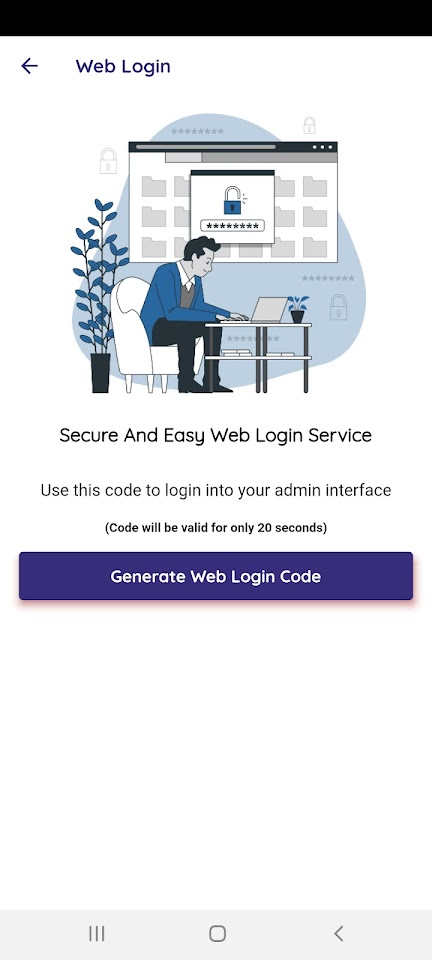
- Open Web Login and tap Generate Web Login Code.
- Use the code to sign in to your admin interface.
- Do it quickly: the code is valid for only 20 seconds.
- Generate a new code each time you need one. An old code stops working.
- Sign out of the browser when you are done, especially on a PC that is not yours.
 XgenPlus Domain Admin App Guide · 6 Real situations
Real situations
How administrators use the app, in the order the phone rings.
A user is locked out on Sunday morning
Two minutes- Search the user's email on Manage Users and open Change Password.
- Set a temporary password and tap Save.
- Tell the user by phone or message, and ask them to change it at first sign-in.
- If they were repeatedly typing a wrong password, check the sign-in rules under Policy in the console on Monday.
A contractor finishes on Friday
One minute, on the first day- Search the contractor and open Expiration Date.
- Choose Friday as the expiry date and save.
- The account expires on that date. Nothing to remember.
The finance head cannot send a large file
Two minutes- Search the user and open User Limits.
- Raise Max attachment size (MB) to the number you want and tap Save.
- Ask them to try again. For very large files, suggest a shared link instead of an attachment.
XgenPlus Domain Admin App Guide · 6 Real situationsA mailbox is full before an important week
Two minutes- Search the user and open Allowed Space.
- Raise the space, staying inside your domain total, and tap Save.
- If your total is nearly used, lower the space of an idle mailbox in the console.
A new phone mail app will not connect
Three minutes- Open the user's IMAP/POP tile and make sure the one they use is enabled.
- Open Services and check IMAP or POP is switched on.
- Send them the server settings from the Desktop & Mobile Setup Guide.
You are on the road and must reach the console
Thirty seconds- Open Web Login in the app and tap Generate Web Login Code.
- Enter the code on the sign-in page within 20 seconds.
- Sign out when you are done.
XgenPlus Domain Admin App Guide · 7 Good to knowGood to know
When to use the app, when to use the console, and what to protect.
App or console?
| Job | App | Console |
|---|---|---|
| Reset a password, set expiry, change space or a limit for one user | ● | ● |
| Switch a service on or off for one user | ● | ● |
| Add one user | ● | ● |
| Add many users, aliases or attributes from a CSV | – | ● |
| Change a setting for every user at once (Bulk Update) | – | ● |
| Edit Domain, Policy, Alert/Notice, Shout Box | – | ● |
| Groups, mailing lists, S/MIME | – | ● |
| Backup, restore and Domain Cleaner | – | ● |
| Reports and logs | – | ● |
- Set your PIN and a phone screen lock.
- Sign out on shared phones.
- Never share the one-time code or the web login code.
- Use a strong admin password.
- If a screen differs from this guide, trust the screen.
- Check docs.xgenplus.com for the latest steps.
- Write to support@xgenplus.com from your admin mail.
Always up to date. The latest and most up-to-date information is always available at docs.xgenplus.com.
Help is one click away