Do more with your mail,
in minutes.
The 11 features people use every day: what they do, how to use them, and where to learn more. Written for the current XgenPlus web mail, with Android and iPhone notes.

 Quick Feature Guide · Contents
What's inside, and how to use this guide
Each feature gets one page: a one-line summary, annotated screenshot, numbered steps and a link to the full help article. Skim the summary; follow the steps only when you need them. Every blue link opens the matching article in the Help Center, which is always kept up to date.
In this guide
01Write & send a mailCompose, attach, send302AI Compose & AI ReplyDraft in 8 Indian languages with Siya403Schedule a mailSend at the right time504Undo send & RecallTake back a mail you regret605Search & find anythingAdvanced search and inside attachments706Sort mail with rulesLet XgenPlus file mail for you807Folders & SnoozeOrganise now, deal with it later908Block a senderStop unwanted mail1009Calendar eventsPlan meetings and reminders1110Contacts & groupsKeep people one click away1211App passwords & secure sign-inConnect other apps safely13Always up to date. The latest and most up-to-date information is always available at docs.xgenplus.com.
 Quick Feature Guide · 01 Write & send
Write and send a mail
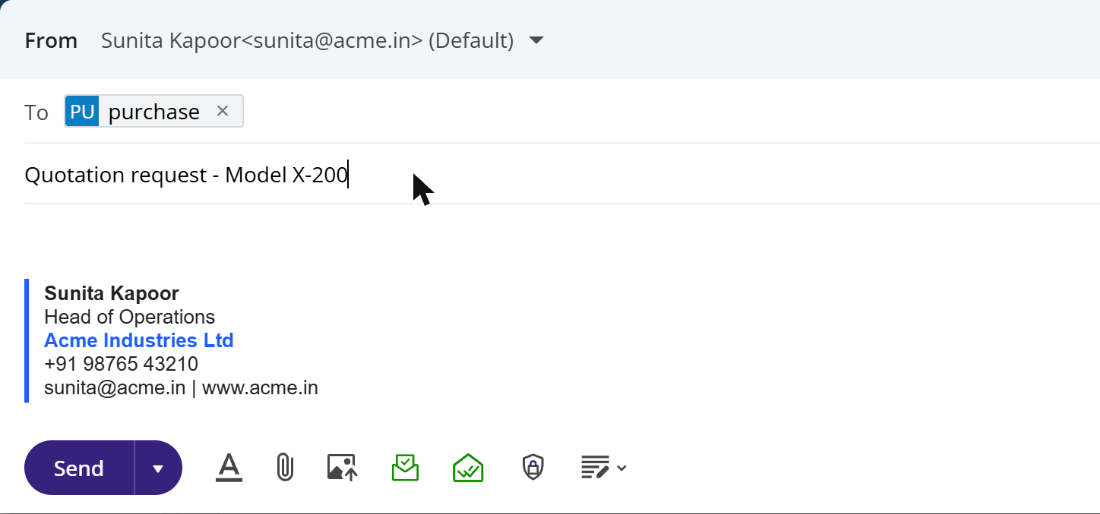
Click Compose Mail, fill in who and what, then send. Your Inbox stays open behind the window.
How to
- Click Compose Mail at the top of the left pane.
- Type the recipient in To. Click Cc or Bcc for more people.
- Type a Subject and write your message.
- Use the icons at the bottom to attach files, format text or ask for a delivery report.
- Click Send.
Icons at the bottom
| Icon | What it does |
|---|---|
| Send ▾ | Send now, or Schedule Send. |
| Formatting | Fonts, colours, lists, links, tables. |
| Attach File | Add files from your computer. |
| Insert Image | Put a picture in the mail body. |
| Report / Receipt | Delivery Report, Read Receipt. |
| Save Draft ▾ | Save to Drafts or Discard. |
Quick Feature Guide · 02 AI Compose & ReplyWrite with AI Compose and AI Reply
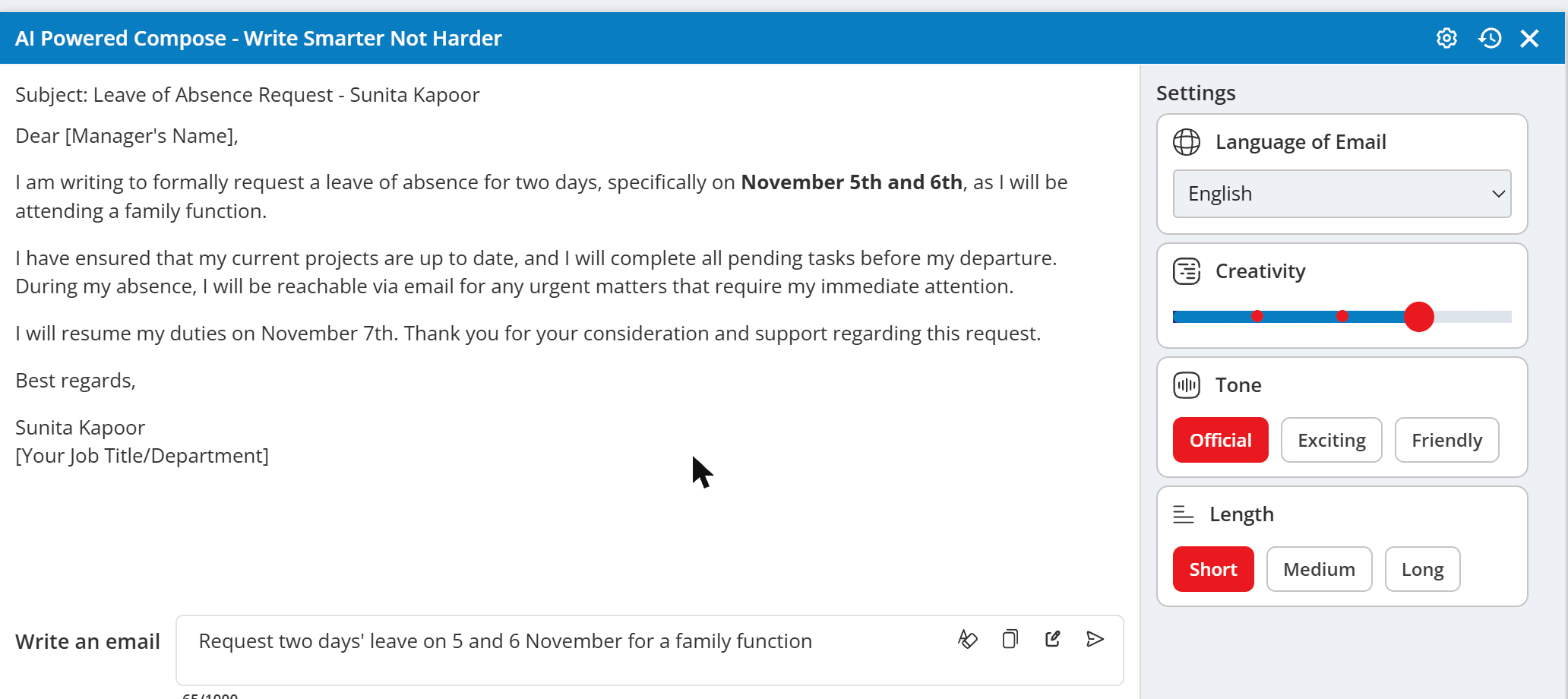
Type what you want to say. Siya drafts it in your language and tone, ready to edit and send.
AI Compose
- Click the arrow next to Compose Mail and choose AI Compose.
- Pick language, tone, length and creativity in Settings.
- Type what the mail should say in Write an email.
- Click the send arrow. Your draft appears.
- Click Send to Compose to edit and send it.
Your options
| Option | What it does |
|---|---|
| Language | English, Hindi, Assamese, Bangla, Gujarati, Kannada, Marathi, Punjabi. |
| Tone | Official, Exciting or Friendly. |
| Length | Short (~500 words), Medium (~1,000), Long (~2,000). |
| Creativity | How freely the mail is worded. |
Answering a mail? Use AI Reply
- Open the mail, click Reply or Reply All, then the Ai reply icon at the bottom right.
- Optionally change language, tone or length and click Rewrite.
- Click Use this as Reply, edit, and send.
Quick Feature Guide · 03 ScheduleSchedule a mail for later
Write it now, choose when it goes. XgenPlus sends it from the server, even if you are logged out.
How to
- Open Compose Mail and write your mail.
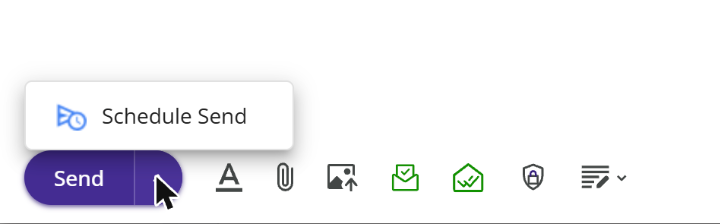
- Click the arrow next to Send.
- Choose Schedule Send.
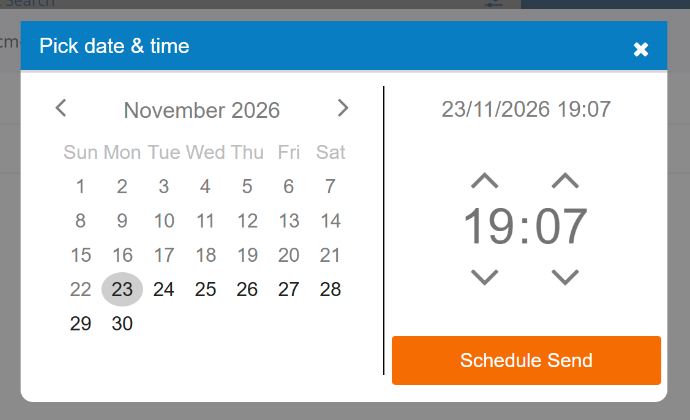
- In Pick date & time, choose when the mail should go and confirm.
Good to know
- A confirmation tells you the date and time the mail is scheduled for.
- You cannot pick a date or time in the past.
- The server sends the mail. Your computer does not need to be on.
- The Help Center article explains where to find mails you have scheduled.
- In Classic compose, use Send on later date.
Quick Feature Guide · 04 Undo & RecallUndo send and Recall
Stop a mail just after you click Send, and recall one that has gone to colleagues who have not opened it.
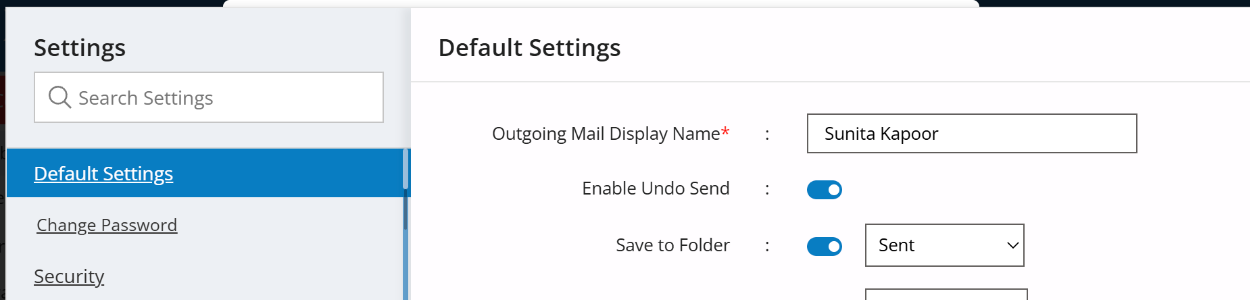
Turn on Undo Send
- Click your profile picture, then Settings.
- Open Default Settings.
- Turn on Enable Undo Send.
- Click Send. A countdown of about 10 seconds shows From, To and Subject. It works for every mail, even to outside addresses.
- Click Stop Mail to cancel, or Send Mail to send at once.
Recall a sent mail
- Open Sent and click the mail. If it can be recalled, Recall Mail appears above it.
- Click Recall Mail.
- Tick the recipients. Anyone who has read it is greyed out.
- Click Recall. A Recalled icon appears in Sent.
| Situation | Can you recall it? |
|---|---|
| Recipient in your organisation, not yet opened | Yes |
| Recipient already opened the mail | No, shown greyed out |
| Recipient outside your organisation | No |
| Mail already recalled once | No, the option is hidden |
Quick Feature Guide · 05 SearchFind anything with Advanced Search
Search by sender, subject, size and date, and even by the words inside attachments.
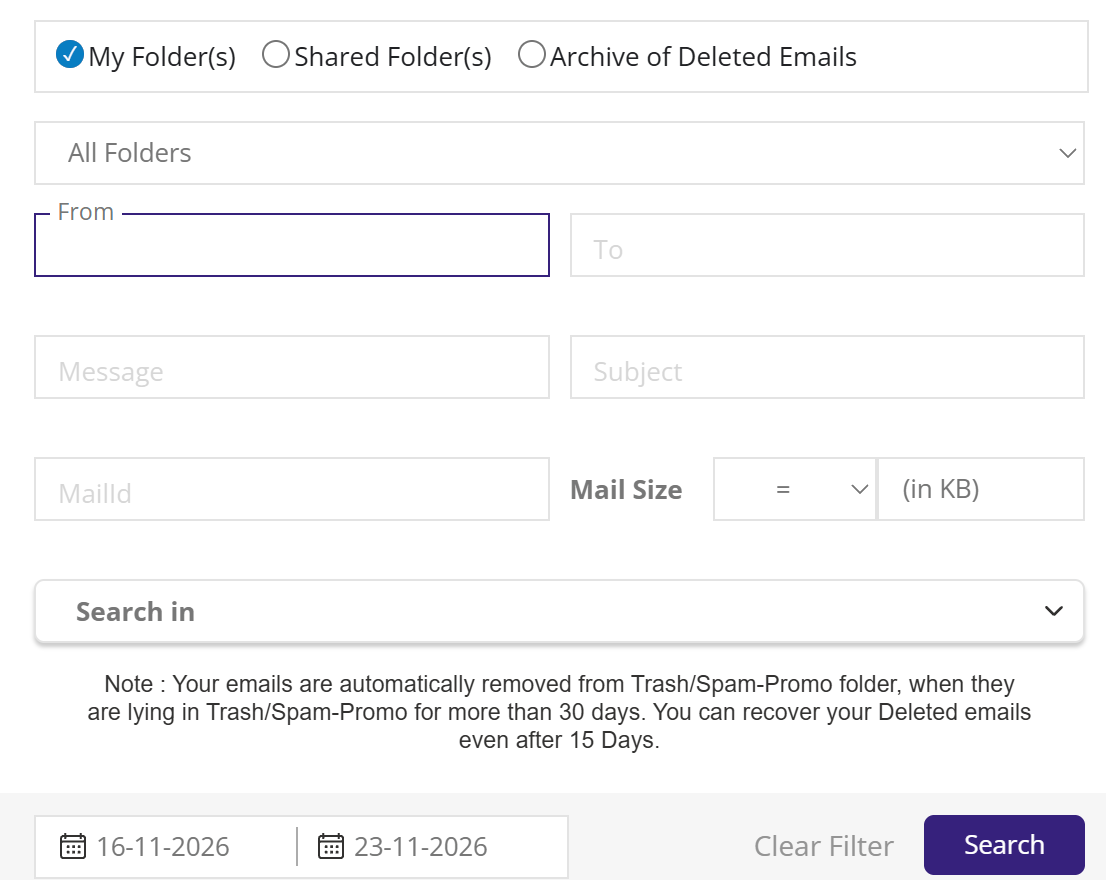
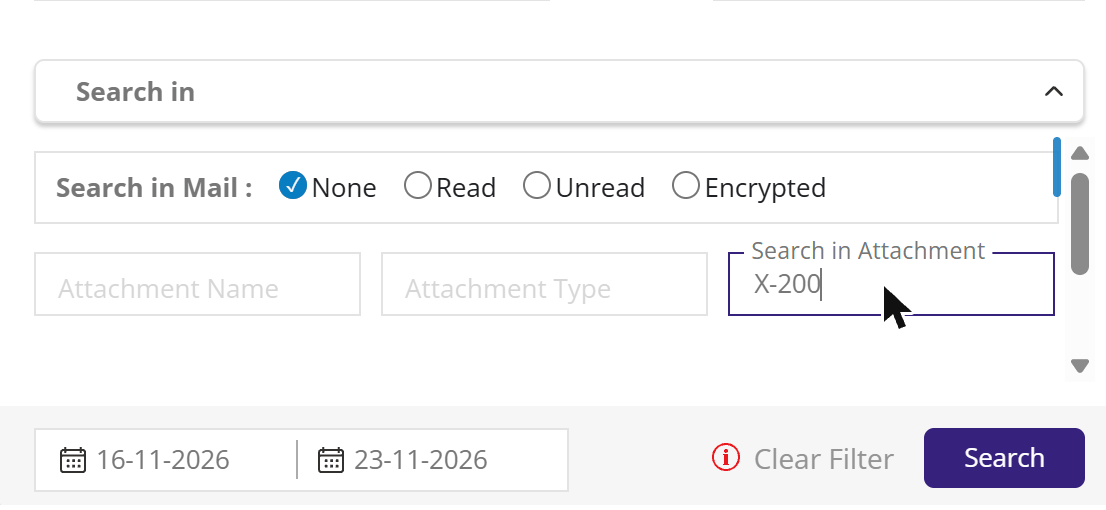
Search inside attachments
- Click the filter icon, then Search In.
- Type words in Search in Attachment.
- Set dates no more than 30 days apart.
- Click Search.
Advanced Search
- Click the filter (sliders) icon at the right of the search box.
- Fill in From, To, Subject or Message and choose a Folder.
- Click Search In for size, attachment and read-state filters.
- Set From Date and To Date, then click Search.
Quick Feature Guide · 06 RulesSort incoming mail with rules
Create a rule once and XgenPlus files matching mail for you as it arrives.
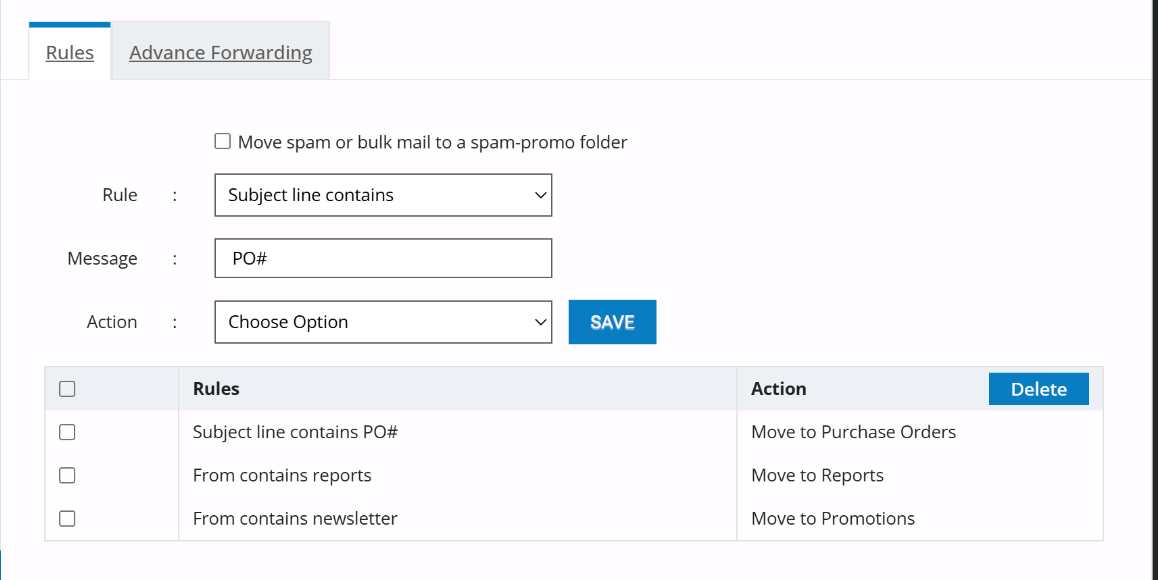
How to
- Click your profile picture, choose Settings, then Rules/Advance Forwarding.
- On the Rules tab, choose a condition under Rule, for example Subject line contains.
- Type the text to match in Message.
- Choose an Action. If it is Move to the specified folder, pick the folder.
- Click Save. The rule appears in the list.
Good to know
- Rules run on incoming mail.
- Your administrator sets how many rules you can have.
- Tick rules and click Delete to remove them.
Quick Feature Guide · 07 Folders & SnoozeFolders and Snooze
Keep mail organised in folders, and snooze a mail until you are ready to deal with it.
Create a folder
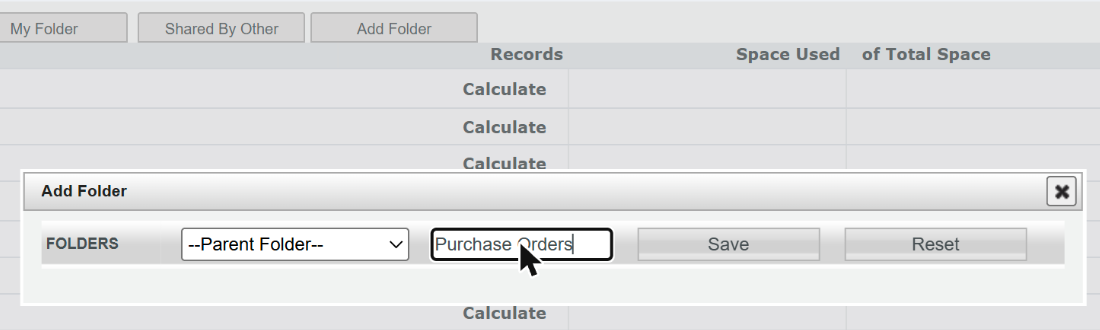
- Click your profile picture and open Folders.
- Click the Add Folder tab.
- Type a folder name.
- For a sub-folder, choose a Parent Folder.
- Click Save. To file mail, drag mails onto the folder in the left pane.
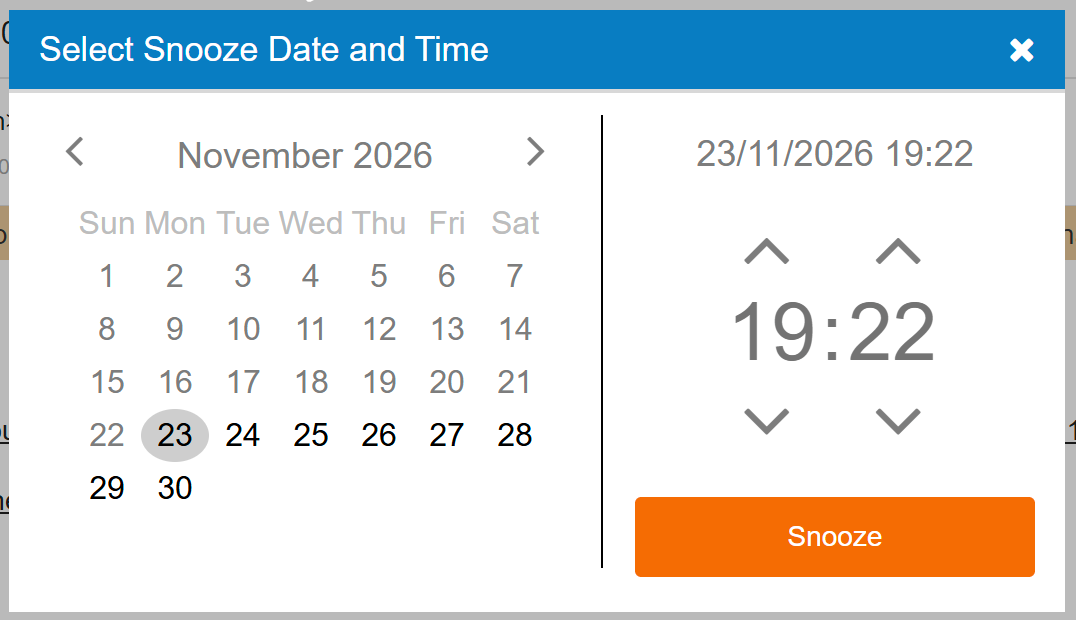
Snooze a mail
- Open the mail.
- Click Snooze in the toolbar.
- Pick a date and time and confirm.
- Change it later: open the mail in Snoozed and click Re-snooze.
 Quick Feature Guide · 08 Block
Block a sender or a whole domain
Stop unwanted mail from one address, or from everyone at a domain, in two clicks.
How to
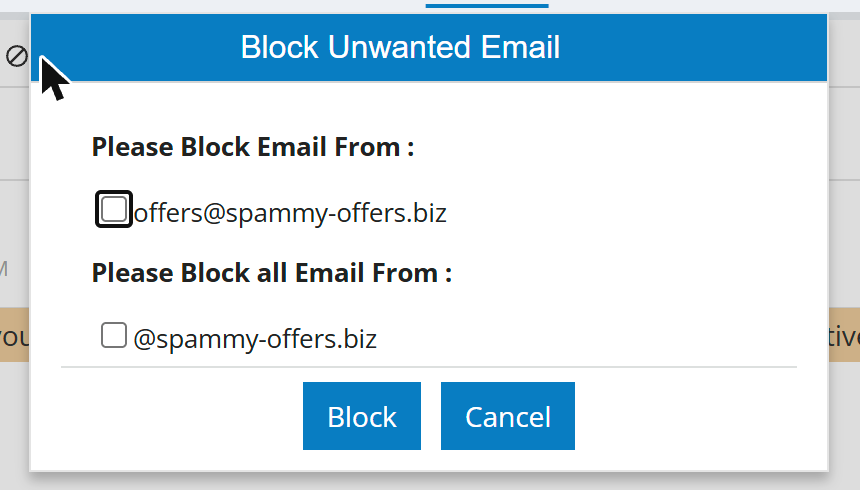
- Open the unwanted mail and click Block in the toolbar (below).
- Tick the address under Please Block Email From, or the domain under Please Block all Email From.
- Click Block.
From the mail list you can also tick several mails and click Block.
 Quick Feature Guide · 09 Calendar
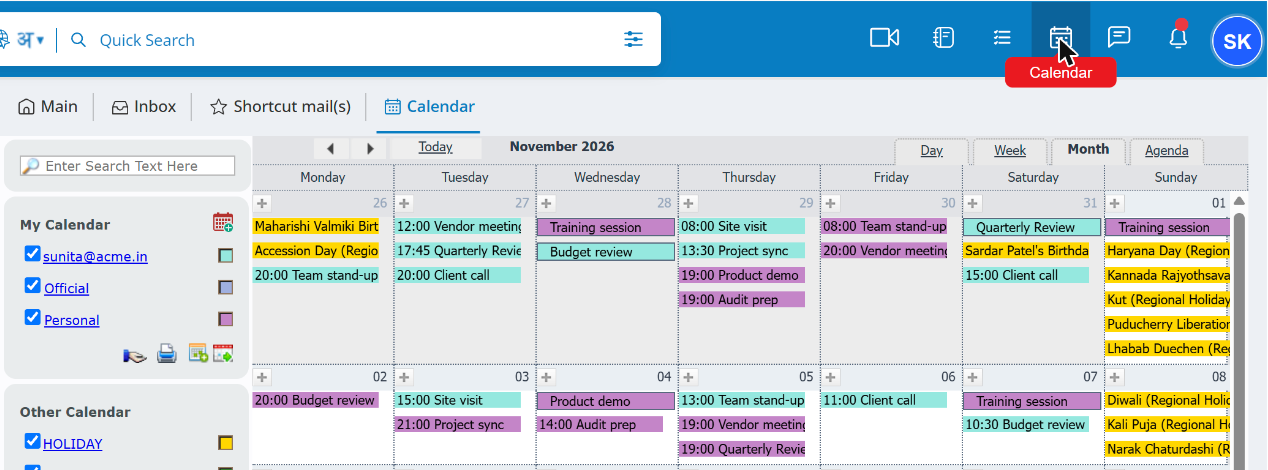
Create a calendar event
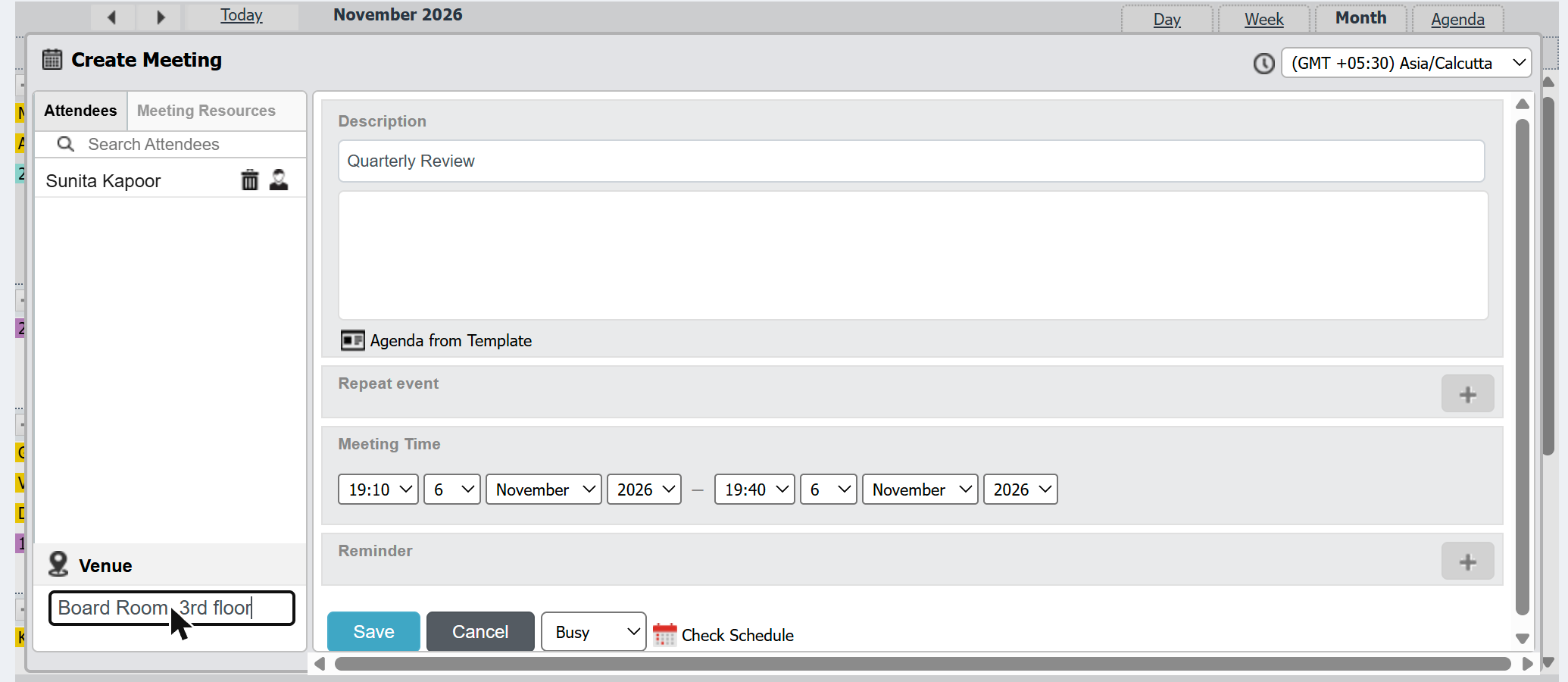
Open Calendar, double-click a day, and fill in the meeting.
How to
- Open Calendar from the top bar.
- Double-click a time slot in Day, Week or Month view, or drag across empty slots.
- If asked, choose the calendar and click Go.
- Enter the Subject, a description and the Venue.
- Set the start and end time and the time zone.
- Click Save.
- The subject can be up to 300 characters.
- You need some free storage space to save an event.
- Use Repeat event and Reminder; Check Schedule shows when people are free.
Quick Feature Guide · 10 ContactsAdd a contact and create groups
Keep people one click away, and mail a whole team through a group.
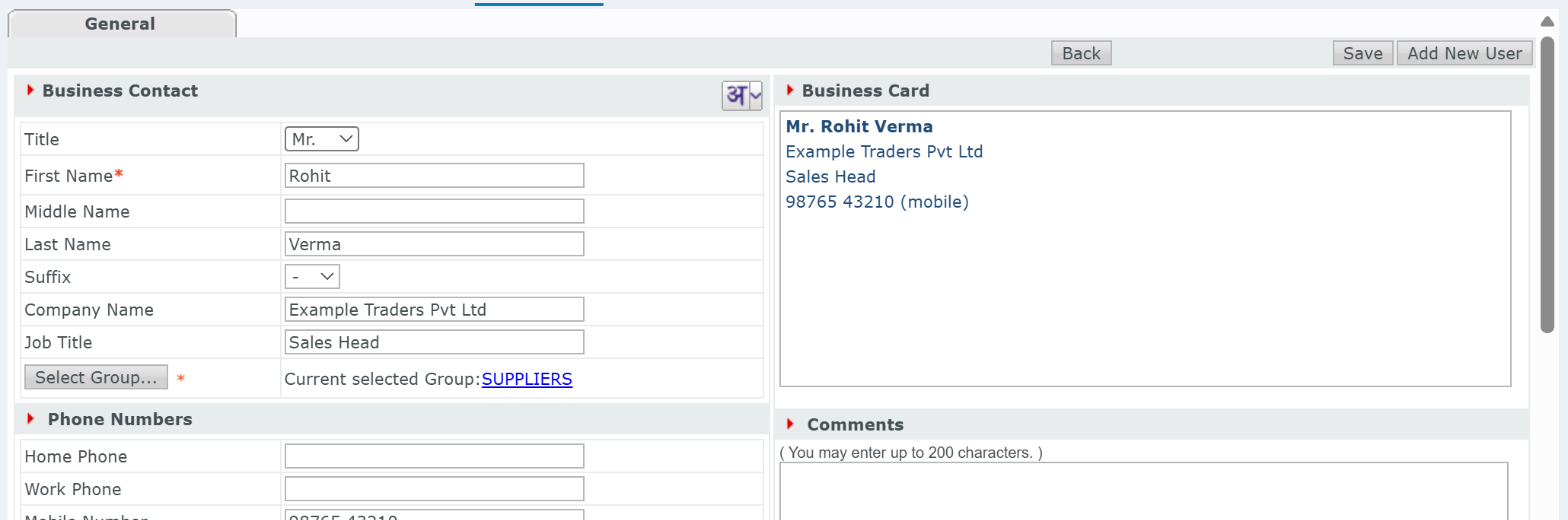
Add a contact
- Open Contacts and click Add Contact.
- On the General tab, enter name, email address, phone numbers and company.
- Choose groups with Select Group(s).
- Click Save.
Create a group
- In Contacts, type a name in Group Name and click Add.
- Use the pencil to rename it, the bin to delete it.
| Good to know | |
|---|---|
| Group names | Up to 20 characters, saved in capitals. Any language, numbers, hyphens, underscores. |
| Several groups | A contact can be in more than one. |
| GENERAL | Every address book has a built-in GENERAL group. |
Quick Feature Guide · 11 SecurityApp passwords and secure sign-in
Connect Outlook, Thunderbird or a phone mail app without sharing your main password, and sign in without typing it.
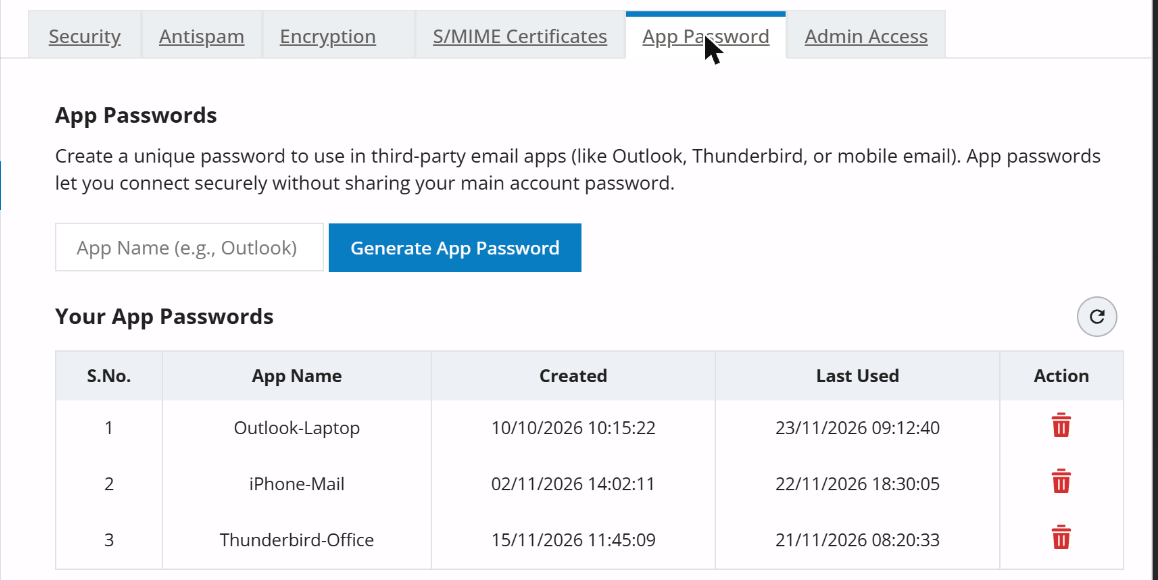
Create an app password
- Click your profile picture, choose Settings, then Security and the App Password tab.
- Type a name for the app or device.
- Click Generate App Password.
- Copy the password from the pop-up. It is shown only once.
- Paste it as the password in your mail app.
You can have up to 10 active app passwords and revoke any of them at any time.
Sign in with a code from the app
- On the login page, click Secure Login Via APP.
- On your phone, open the XgenPlus app and choose Web Login to see your 6-digit code.
- Enter your email address and the code, then click Log Me In.
Help is one click away
Go deeper
Also from XgenPlus