Your first day,
made easy.
A friendly tour of your new mailbox: sign in, find your way around, write your first mail and set up the few things that matter most.

 Smart Guide · Contents
Your first-day plan
Ten minutes is enough. Follow the guide in order, or jump to the page you need. Each page ends with a link to the full article in the Help Center.
In this guide
01Sign in & your first ten minutesGet in, set your password, find the essentials302Meet your mailboxFolders, tabs, search and filters403Read and act on a mailMove, reply, delete, block, snooze504Your Home dashboardToday at a glance and the AI summary605Write your first mail, with SiyaCompose and AI Compose706Calendar and ContactsPlan your day, keep people close807Settings that matterSignature, Undo Send, theme908Stay safeBlock, antispam, secure sign-in1009Use your mail on other devicesPhone apps, Outlook, Apple Mail, Thunderbird11Always up to date. The latest and most up-to-date information is always available at docs.xgenplus.com.
 Smart Guide · 01 Sign in
Sign in and your first ten minutes
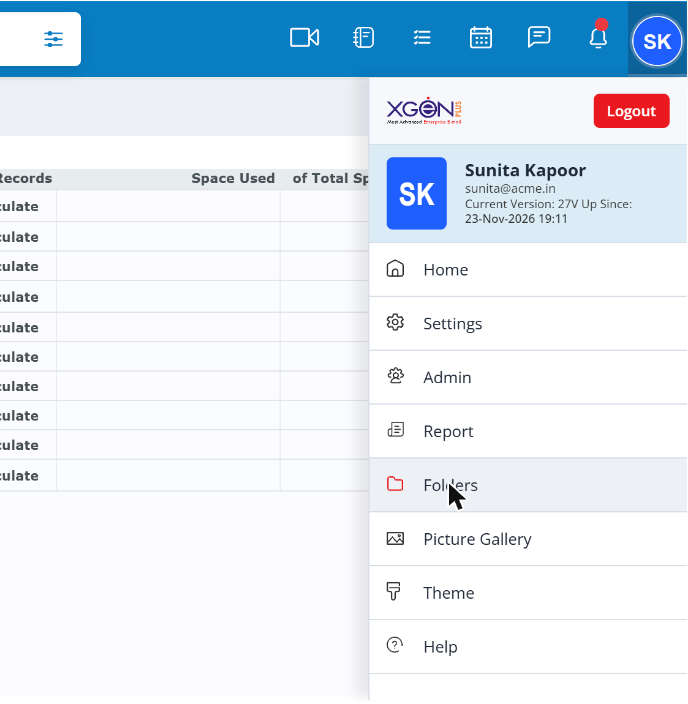
Open your organisation's webmail address, sign in, and set a password of your own. Your Inbox opens.
Sign in
- Open your organisation's webmail address in a browser. Ask your administrator if you don't know it.
- Type your email address, click Next, enter your password and click Login.
- If asked, set a new password of your own. Only you should know it.
- Your Inbox opens. Click a mail to read it, or click Compose Mail to write one.
Your first ten minutes
| Do this | Where |
|---|---|
| Set your own password | Asked on first sign-in, or Settings › Change Password |
| Read, write, find mail | Inbox and Compose Mail in the left pane; the search box at the top |
| Add your signature | Settings › Signature |
| Add a recovery email | Settings › Security, so you can reset a forgotten password yourself |
| Sign in faster (own computer only) | After two-step login, set a 3-digit PIN with Generate Pin. Wipe Pin removes it |
Smart Guide · 02 Your mailboxMeet your mailbox
Everything lives in three places: the left pane for folders, the top bar for search and tools, and the middle for your mail.
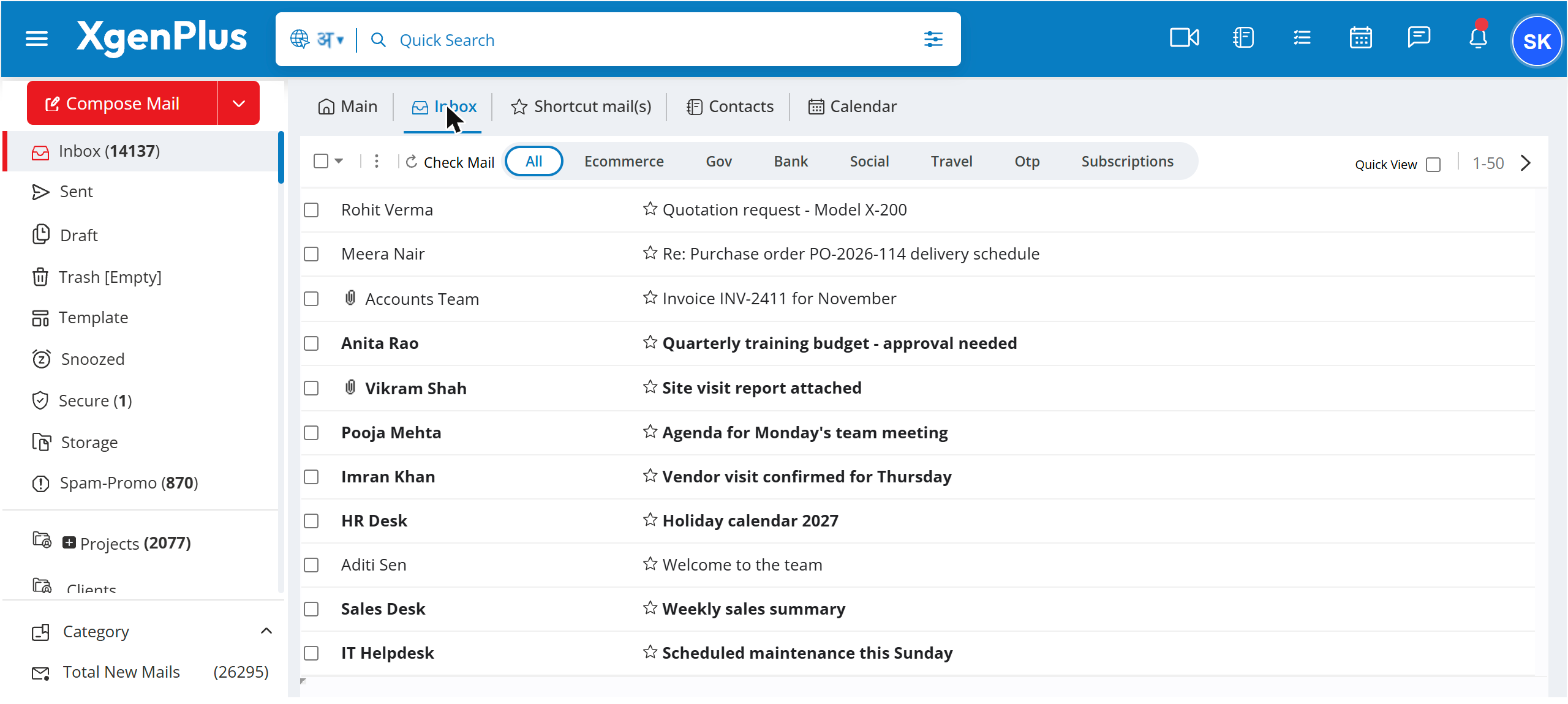
- Compose Mail: write a new mail. The arrow beside it opens AI Compose.
- Folders: Inbox, Sent, Draft, Trash, Template, Snoozed, Secure, Storage, Spam-Promo, plus your own.
- Quick Search: type to find mail fast.
- Filter icon: Advanced Search by sender, subject, folder, size and dates.
- Tabs: Main, Inbox, Shortcut mail(s), plus the Contacts and Calendar you open.
- Category chips: All, Ecommerce, Gov, Bank, Social, Travel, Otp, Subscriptions.
- Top bar tools: video meet, contacts, tasks, calendar, chat, notifications.
Smart Guide · 03 Read & actRead and act on a mail
Click a mail to open it. The toolbar above it holds everything you do most.

- Move To: file the mail in one of your folders.
- Reply: reply, reply all or forward. In the reply window, the Ai reply icon drafts an answer for you.
- Delete: move it to Trash.
- Block: block the sender or the whole domain.
- Snooze: hide it until a date and time you pick.
Smart Guide · 04 DashboardYour Home dashboard
The Main tab greets you with today's numbers and an AI summary of your day.
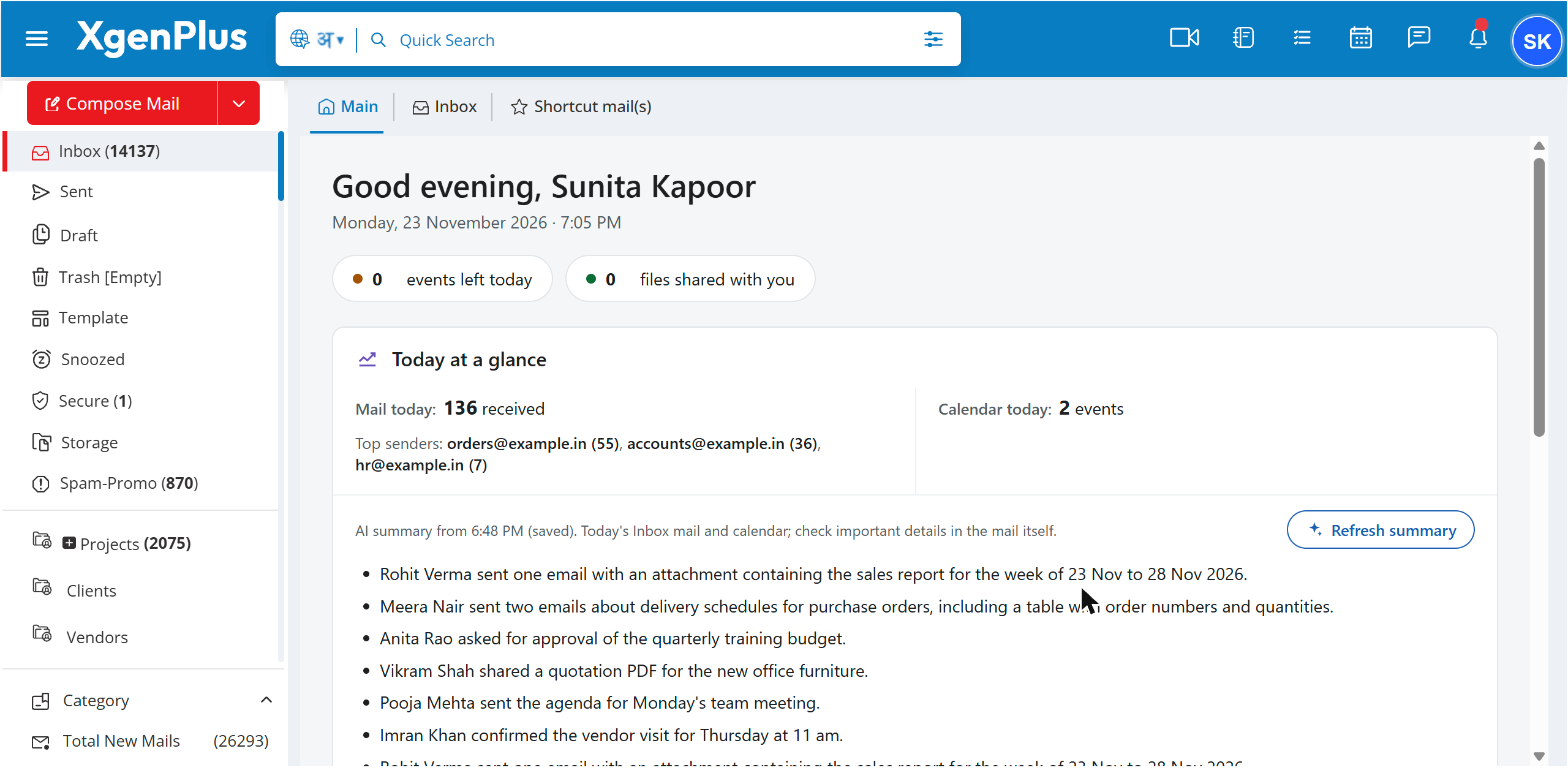
- Greeting and chips: events left today and files shared with you.
- Today at a glance: mail received today, top senders and calendar events.
- Refresh summary: the AI summary of today's Inbox mail and calendar is generated once per login and reused until you click Refresh summary.
- Left pane: your Inbox and folders stay one click away.
Smart Guide · 05 First mailWrite your first mail, with Siya
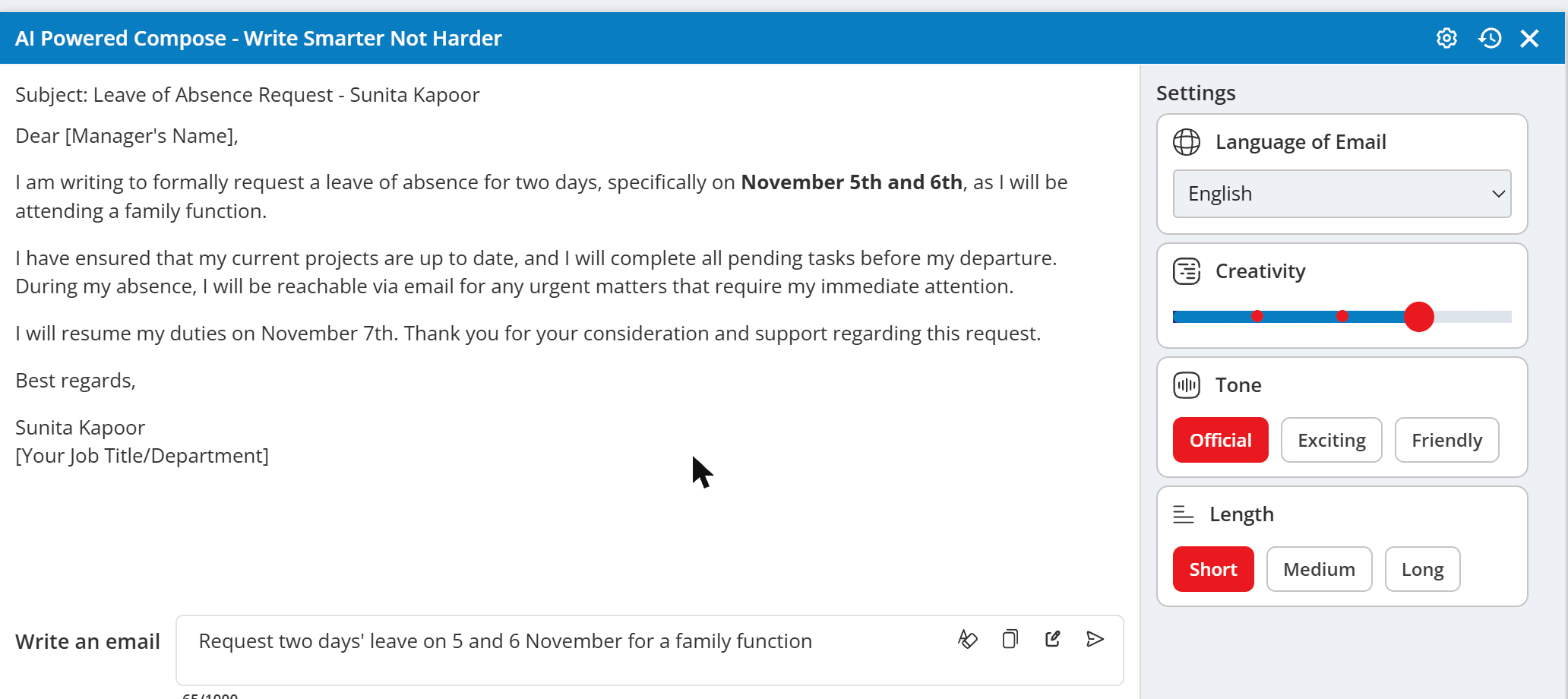
Write it yourself, or let Siya draft it in your language and tone.
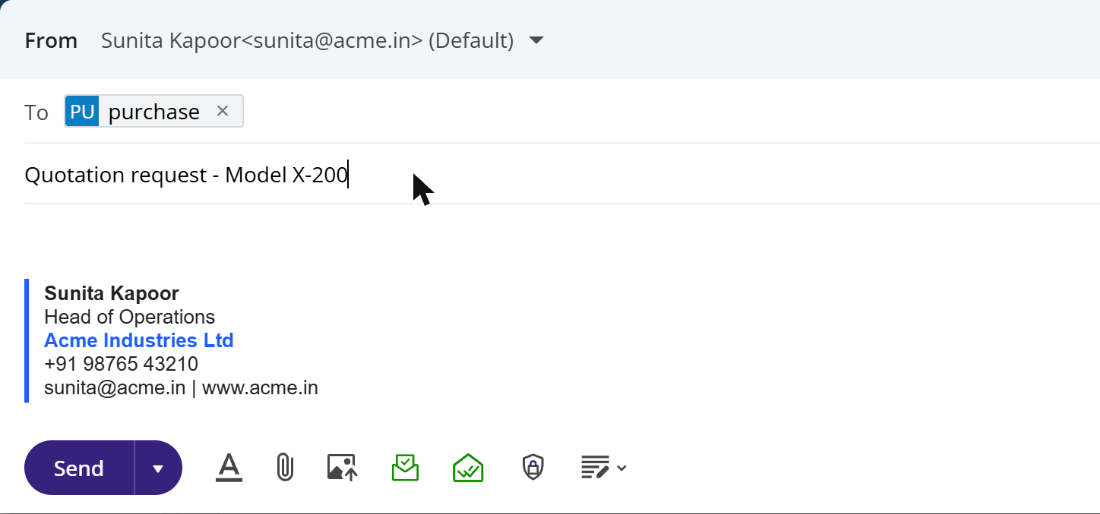
Write it yourself
- Click Compose Mail.
- Fill in To and the Subject.
- Write your message. Your signature is already there.
- Click Send.
Let Siya draft it
- Click the arrow next to Compose Mail and choose AI Compose.
- Choose language, tone and length.
- Describe the mail in Write an email and click the send arrow.
- Click Send to Compose, check the draft and send.
 Smart Guide · 06 Calendar & Contacts
Calendar and Contacts
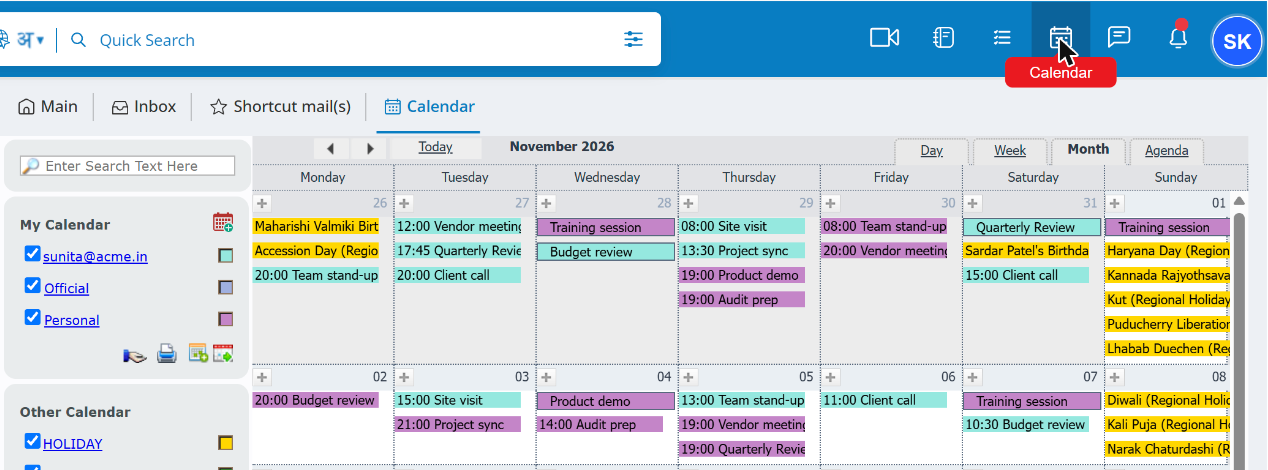
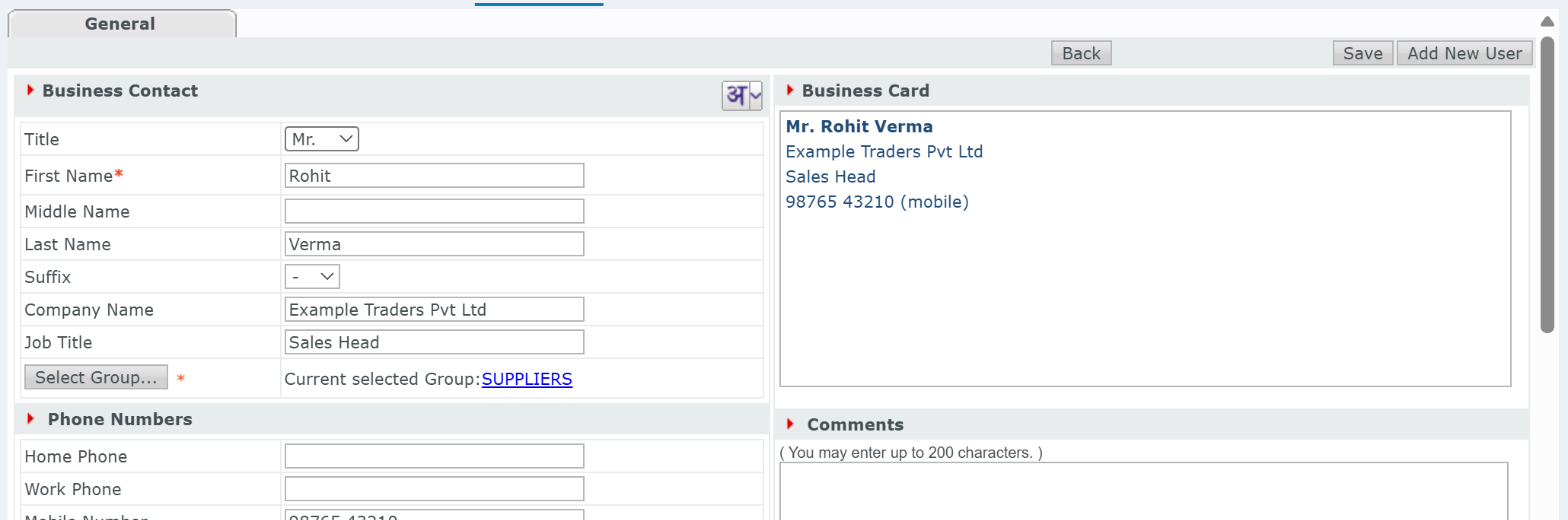
Open both from the top bar. Double-click a day to create an event; click Add Contact to save someone.
Calendar
- Open Calendar from the top bar.
- Double-click a day; if asked, choose the calendar and click Go.
- Fill in Subject, Venue and time, then Save.
Contacts
- Open Contacts and click Add Contact.
- Fill in the General tab and choose a group.
- Click Save.
 Smart Guide · 07 Settings
Settings that matter
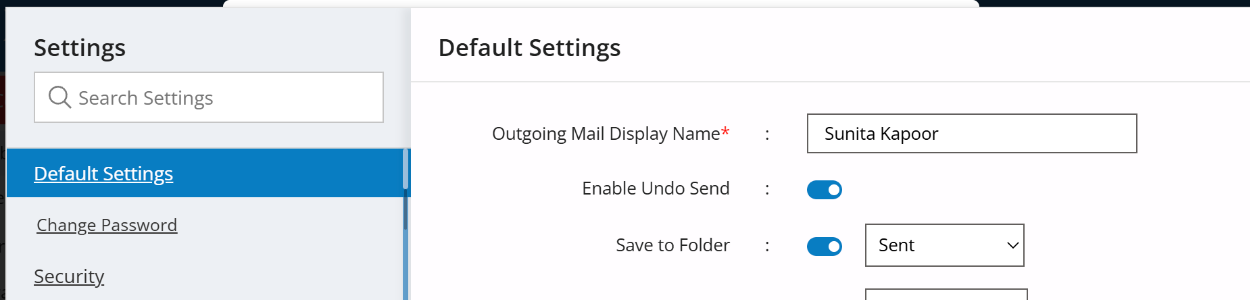
Five minutes in Settings makes everyday mail safer and faster. Click your picture, then Settings.
| Setting | Why set it |
|---|---|
| Signature | Added automatically to every new mail and reply. |
| Enable Undo Send | A short countdown after Send so you can stop a mail. |
| Outgoing Mail Display Name | The name people see on your mail. |
| Timezone | Keeps events and schedules on your time. |
| Default Email Font | The font and size every new mail starts with. |
Make it yours
- Click your profile picture and open Theme.
- Click the Purple, Blue, Maroon or Green swatch.
- The page reloads and stays that way next time you sign in.
Smart Guide · 08 Stay safeStay safe
XgenPlus gives you several layers of protection. Know where to find them.
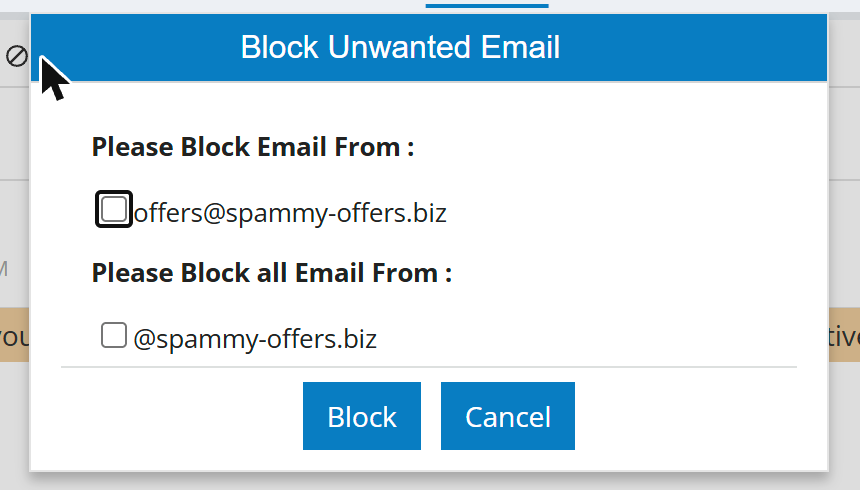
Block unwanted mail
- Open the mail and click Block.
- Tick the address, or the domain to block everyone there.
- Click Block.
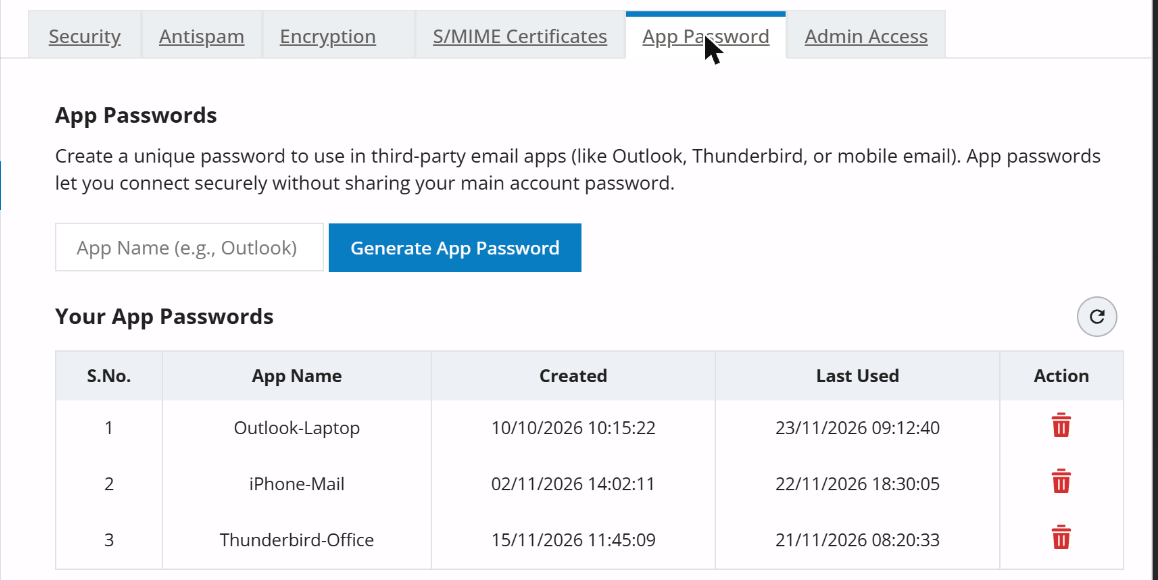
Protect your account
- Settings › Security › App Password.
- Name the app, click Generate App Password and copy it (shown once).
- Or on the login page, click Secure Login Via APP.
 Smart Guide · 09 Other devices
Use your mail on other devices
Install the XgenPlus mobile app, or connect Outlook, Apple Mail or Thunderbird with these settings.
Server settings
| Incoming (IMAP) | imaps.xgenplus.com Port 993, SSL/TLS |
| Outgoing (SMTP) | smtps.xgenplus.com Port 465, SSL/TLS or port 587, STARTTLS |
| User name | Your full email address |
| Password | Your app password |
Mobile apps
- Android: XgenPlus Mail on Google Play.
- iPhone: XgenPlus Mail on the App Store.
- Sign in on the web with a code from the app using Secure Login Via APP.
- AI Compose works on Android and iPhone too.
Step by step
Open Apps & devices in the Help Center for step-by-step setup of phones and desktop mail apps.
Help is one click away
Your next steps
More from XgenPlus